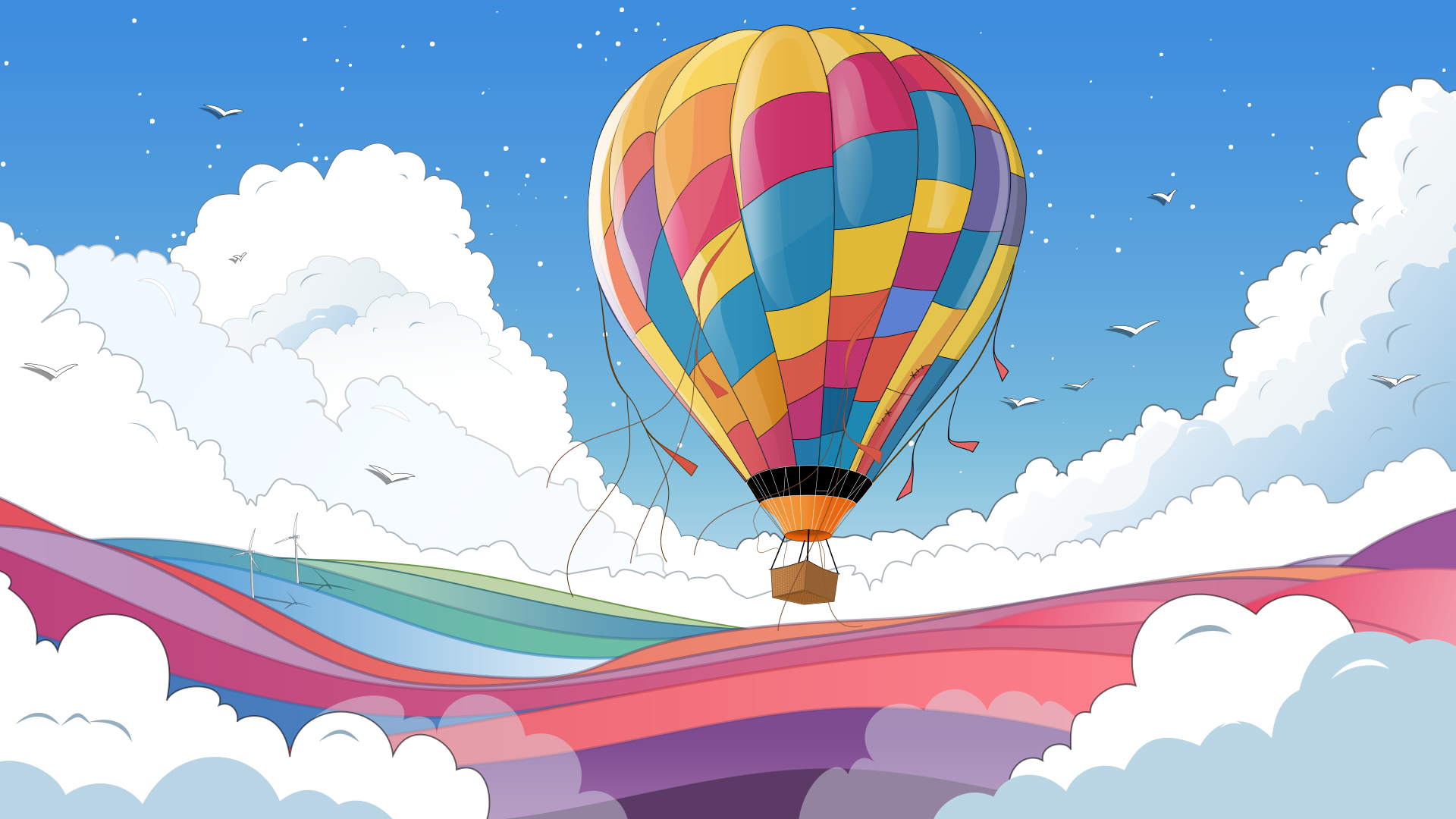
Vector art made with the new vector tools in Karaz 1.0
After three -and a half- betas, we are happy to finally introduce the final and biggest stage of the beta / the start of the final release, the Release Candidate (RC) of Karaz 1.0, and it is the biggest release yet, to the point that we can’t cover everything added in it, but we will cover the major additions, so let’s get right into what Karaz 1.0 has to offer.

Vector logo made with Karaz 1.0
Let’s start with the Karaz 1.0 main feature, the vector system, also known as the spline or the path system. It’s a powerful and fully featured path making and editing toolset, from creation of paths, to shaping them, and using them to either create vector graphics like logos and icons, and all forms of vector art, then exporting that as ready to use svg files, the standard vector format, or use those paths to make high quality selections and masks and more.
Practically infinite sharpness is one of the main advantages of vector graphics
You can learn about this new system and how to use it in 3 lessons: vector basics lesson, where the basics of how to make and use paths in Karaz are explained, including how to use the main vector element in Karaz, the “Vector” node. Vector intermediate lesson, where we use the Karaz 1.0 vector toolset to make a vector graphic of a logo. And finally the vector advanced lesson, where we create a vetor art of a hot air balloon from scratch:
You can learn about this new system and how to use it in 3 lessons:
Multiple images being edited and saved at once with the new batch nodes “Open” and “Save”
Next is the second major feature in Karaz 1.0, batch processing and saving with the "Open" and "Save" nodes. With batch processing, you can open hundreds of images in one "Open" node, apply the same operations to them then save them all at once with a "Save" node.

"Open" node allows to open any amount of images you want, and those images are updated automatically if their files on disk are changed, then you can apply any node setup you want to them, and add a "Save" node at the end, where you can specify where to save and what prefixes or suffixed you want to add the newly saved images, then batch save everything at once with one click.
Automatically vectorize pixel images into perfectly sharp vector images
Next is a path related feature “Vectorize Canvas Silhouette”, where you can take any pixel based binary image and turn it into a vector image by automatically vectorizing it and turning it into paths. For details on how to use this feature, please watch the vector basics tutorial.
Copy images along a path that automatically scale to perspective
Next is our first path dependent node in Karaz: “Copy Along Path” node. With it you can take any pixel based image and make multiple copies of it along a path. The node also supports perspective scaling, making a vanishing series of objects trivial to create.
Grid basd image Deformation
With “Deform” node, also known as “Warp” node, you can take any image and deform it either wholly, or partially by either a point grid, or a path. You can make local touches, or change the general shape of the object in the image. You can also fix lens distortions and apply perspective correction.
Array node had a complete design overhaul, the new design is not only capable of doing all what the old design did, but it does it in a more organized fashion where the less common operations are not shown by default, and when you need them, they can do more than what the original could.
3D rotation used to add an 80s style grid
The Rotate node now has a new ability if 3D rotating the image, where you can rotate the image in all 3 (x,y,z) axes, move it and scale it around 3D space, complete with perspective FOV control.
We have a couple new ways to select, first is “Outline”, also know as “Free Hand”, where you can select by drawing any shape with the mouse. You can also turn any path into selection by right clicking on the vector node and picking “Turn/add to selection”.
In the “Hue” node, in addition to the HSV color space, you can now change the image colors in the HCL color space, also known as LCh color space. HCL is similar to HSV, but it’s designed around the perceived colors to the human eye, giving a more natural and less harsh color shift than HSV.
Interpolation option were added to the Symmetry node, and blending option is added when the “all sides” option is checked.
There is too much in Karaz 1.0 to cover, here is some of the highlights:
For comments and questions, please visit the forums